
Hey Switch
Notion Recommended Creator
Friday, April 25, 2025
Hey there! Ever wondered how to make your Notion experience more comfortable on your eyes? Let me introduce you to Notion dark mode. This nifty feature isn't just about aesthetics; it's a game-changer for those long hours spent staring at screens. Whether you're working late at night or just prefer a softer look, dark mode has got you covered. It's all about creating a soothing environment while you organize your life. Join me as we explore how to enable and disable this feature, making sure your Notion workspace is just the way you like it. Ready? Let's dive in!
Understanding Notion Dark Mode
Notion dark mode is a fantastic feature for users who spend lots of time on their screens. It transforms the traditional bright interface into one that is easier on the eyes, especially in low-light environments. But what exactly makes Notion dark mode so beneficial?
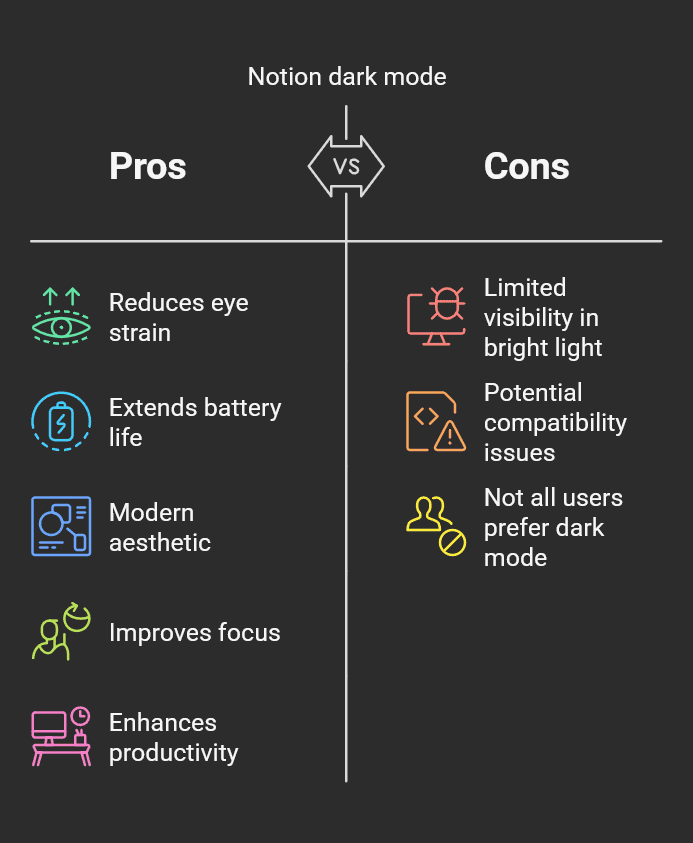
First, let's talk about the benefits. Dark mode helps in reducing eye strain, which is crucial when you're working late into the night. It's not just about comfort; it's also about aesthetics. Many find the sleek, modern look of dark mode more visually appealing than its lighter counterpart.
Moreover, Notion dark mode offers consistency across all devices. Whether you're using a laptop, tablet, or smartphone, the dark mode maintains a uniform appearance, ensuring a seamless experience. This consistency is key for those who switch between devices frequently.
Dark mode also plays a role in maximizing productivity. By adjusting your workspace to a more comfortable setting, you can focus better and work longer without discomfort. Interested in more productivity tips? Check out how to maximize Notion for productivity for more insights.
By understanding the advantages of Notion dark mode, you're well on your way to enhancing your Notion experience and making it truly your own.
For the quick step, you can change between dark and light mode by using keyboard shortcut of "Ctrl + Shift + L" in windows version and "Cmd + Shift + L" in mac version. For more keyboard shortcut, you can find it in our other "Notion Keyboard Shortcut" article.
Enabling Dark Mode in Notion
Activating Notion dark mode is a breeze. You'll be amazed at how quickly you can switch to this eye-friendly interface. Here’s a simple guide to get you started:
Accessing Settings & Members
To enable Notion dark mode, first, you'll need to find the "Settings & Members" option. Look at the top left corner of your screen, where you typically see your workspace name. Click on it, and a dropdown menu will appear. Here, you'll find "Settings & Members" conveniently located. This section is your gateway to customizing your Notion experience.
Navigating to Appearance Settings
Once you’re in the "Settings & Members" section, select "My notifications & settings." This will lead you to a panel where you can tweak various aspects of your Notion space. Scroll down until you spot the "Appearance" section. It's where all the magic happens, allowing you to tailor the look and feel of your workspace to suit your preferences.
Choosing Dark Mode Option
Now, it's time to select the Notion dark mode. Within the "Appearance" settings, you'll see options for different themes. Simply choose "Dark" mode. Instantly, your interface will transform into a sleek, dark design. This change not only boosts aesthetics but also makes long hours in front of the screen more comfortable. Curious about further customization? Explore more with these Free Notion Templates for Customization to make your workspace truly yours.
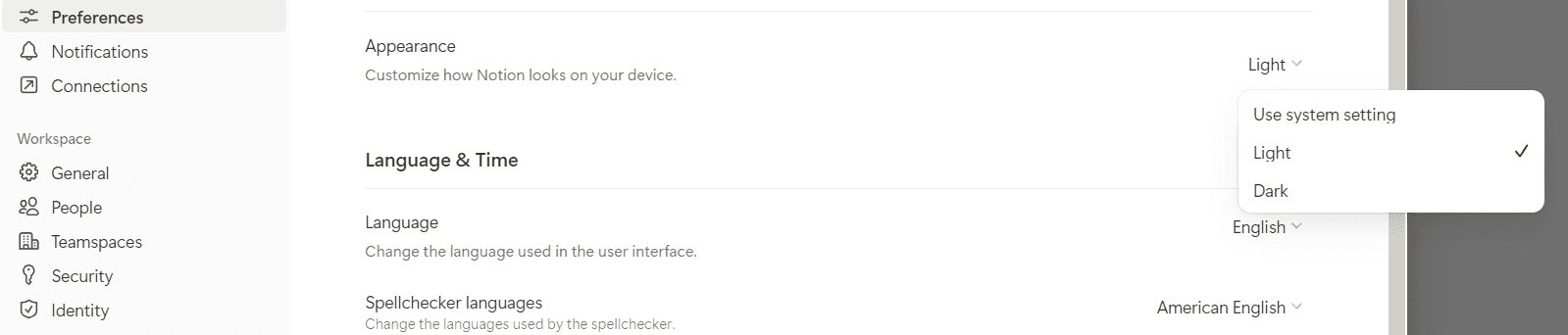
By following these steps, you're not just modifying your Notion interface; you're enhancing your productivity and comfort. Enjoy your new, stylish Notion dark mode!
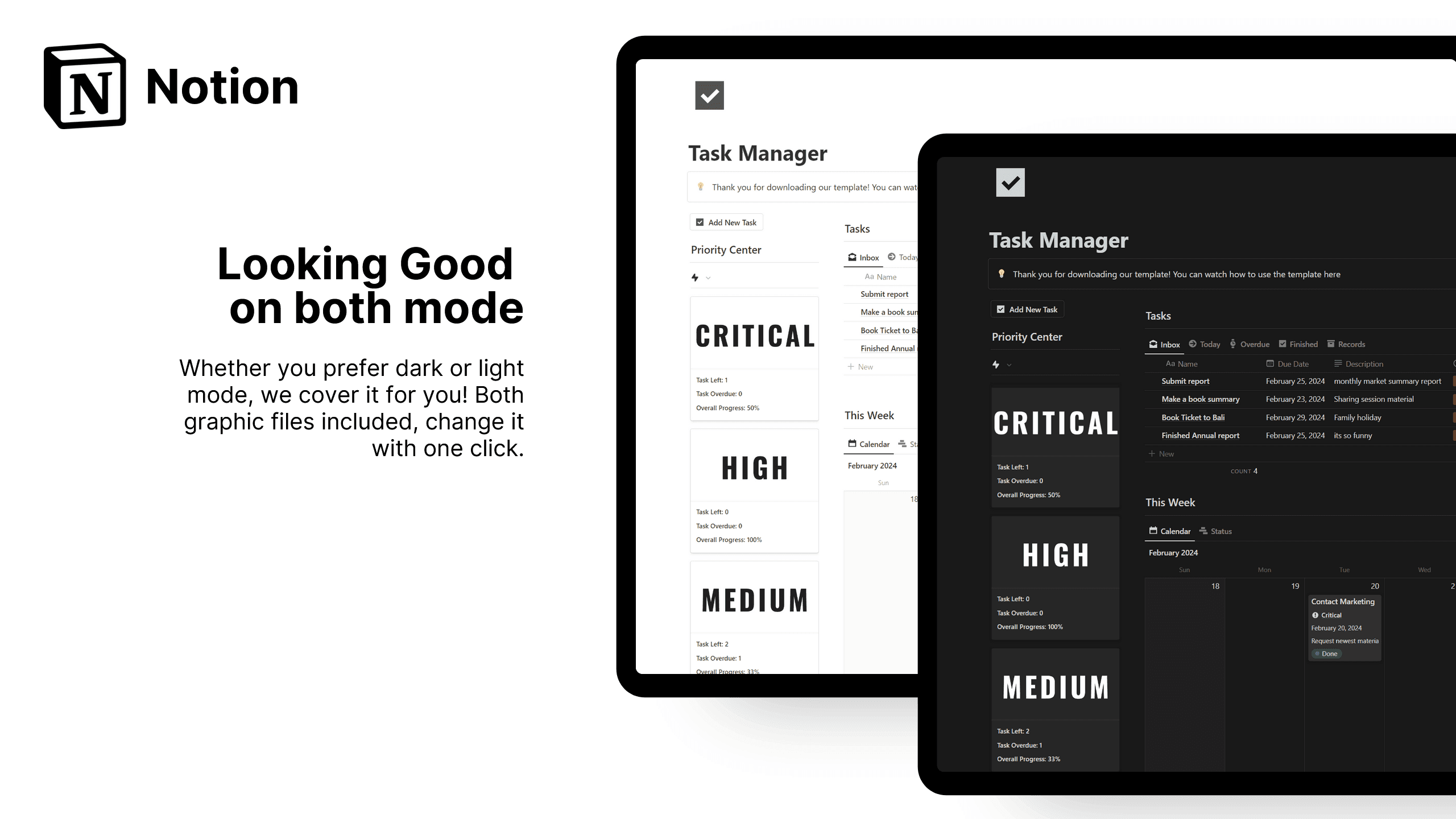
Some might prefer light mode for various reasons. It’s ideal in well-lit environments, and some users find it easier to read. Others enjoy the traditional look or feel more energized by a brighter interface. Whichever you choose, it's about personal comfort and productivity.
For more on how Notion can enhance your workflow, check out How Notion Transforms Your Workflow.
Notion Dark Mode on Mobile Devices
Navigating Notion dark mode on mobile devices is a breeze, whether you're on iOS or Android. The feature aligns beautifully across platforms, making your mobile Notion experience just as seamless as on a desktop. But how exactly does it work on mobile?
iOS Devices
On iOS, Notion dark mode syncs with your system settings. If your device is set to dark mode, Notion will automatically adjust to match. This integration ensures a consistent experience without needing manual tweaks every time. Just make sure your iOS is up to date, as compatibility is typically linked with newer versions.
Android Devices
For Android users, it's a similar story. Notion dark mode also follows your device's system settings. If your Android is set to dark mode, Notion will mirror that choice. It's a smart way to keep things uniform and stylish. Ensure your device meets the necessary compatibility requirements, often tied to the latest Android updates.
By leveraging system settings, Notion dark mode enhances usability on mobile, offering a comfortable visual experience. Interested in the health benefits of dark mode? Check out this Healthline article for insights on reducing eye strain and more. Whether for aesthetic preference or eye comfort, dark mode on mobile is a win!
Advantages of Using Dark Mode
Using Notion dark mode offers several key advantages that can enhance your digital experience. Firstly, it significantly reduces eye strain, especially during long working hours or in dimly lit environments. This makes it a healthier choice for those of us glued to our screens.
Health Benefits: By minimizing blue light exposure, Notion dark mode eases the pressure on your eyes, making late-night work sessions less taxing. It’s a smart choice for your well-being.
Energy Efficiency: On devices with OLED screens, dark mode can extend battery life. Because fewer pixels need to be lit up, your device consumes less power, making Notion dark mode not only stylish but also practical.
Aesthetic Appeal: Many users prefer the sleek, modern look of dark mode. It’s not just about comfort; it’s about style and personalization. According to iScanner, dark mode can improve focus and productivity, aligning with user feedback that praises its calming effect.
Embracing Notion dark mode can be a game-changer for both your productivity and device longevity. Whether for health, battery savings, or personal style, it’s a worthwhile switch.
Troubleshooting Common Issues
Switching to Notion dark mode can sometimes lead to minor hiccups. But don't worry—I've got you covered! Here are some common issues and how to tackle them effectively.
Display Inconsistencies
One frequent problem is display inconsistencies, where some elements might not appear as expected. This can be due to outdated app versions. Always ensure your Notion app is up to date to benefit from the latest fixes and enhancements. If issues persist, a quick restart of the app often resolves these glitches.
App Glitches
Sometimes, toggling Notion dark mode can lead to app glitches like freezing or slow performance. Clearing the app cache can often help. Head to your device’s settings, find Notion, and clear the cache. This simple step can refresh the app and restore smooth functionality.
System Updates
Remember, keeping your device’s operating system updated is crucial. Updates often include important compatibility improvements for apps like Notion. By maintaining current system software, you reduce the risk of encountering issues while using Notion dark mode.
For a more detailed guide on customizing and fixing Notion's dark mode, check out this complete guide. By staying proactive with updates, you ensure a seamless experience with Notion dark mode, enhancing both functionality and comfort.
Tips for Customizing Notion's Appearance
Customizing your Notion workspace can go way beyond just enabling Notion dark mode. Here’s how you can personalize it further:
Explore Themes: Notion offers different themes that can complement dark mode beautifully. Try mixing and matching to find what feels right for you.
Custom Icons: Adding custom icons to your pages can make navigation more intuitive and fun. Whether it's for a project or a personal task list, icons can help you identify sections quickly.
Page Layouts: Experiment with different page layouts. Use columns, toggle lists, and headers to structure your content effectively. This not only enhances aesthetics but also boosts productivity by making information more accessible.
Don't be afraid to play around. Personalizing your workspace can transform how you interact with Notion. Discover what combinations improve your workflow and comfort. After all, it's your space—make it work for you!
Now that you know how to switch between light and dark modes in Notion, you can tailor your workspace to suit your mood and needs. Whether you're aiming for less eye strain or just prefer the sleek look of dark mode, it's all about making Notion work for you. And speaking of customization, why not enhance your experience even further? Explore our range of templates designed to boost your productivity and organization. Dive into creating a workspace that's uniquely yours and get more done with our Notion templates.
notion dark mode
Notion vs Evernote vs Obsidian (2026): Which Notes App Will You Actually Stick With?
Compare Notion, Evernote, and Obsidian in 2026: features, pricing, workflows, and who each app fits best using verified sources.
Feb 4, 2026
Top 12 Notion Second Brain Templates for 2025
Discover the 2025 Notion Second Brain template. Enhance productivity with new features, customization, and seamless integration. Transform your workflow today!
Jun 26, 2025
Top 12 Notion Dashboard Templates for 2025
Explore the 12 best Notion dashboard templates for 2025 to boost productivity and streamline tasks with customization and versatility. Discover your ideal fit today!
May 17, 2025